

FAQ
We have the answers to your questions
Click on the tab to see the FAQ about it.
Technology and Tools
You can submit your question or comment in the Q&A Panel.
- As a participant, you cannot initiate direct chats with other participants.
- To chat with someone, click on their name in the participant list and select "Start private chat".
Further interaction opportunities:
- Meet & Exchange Channel: Engage in live discussions and participate in conversations in breakout rooms. Turn your video on and interact with other participants in real time. This is the perfect space for meaningful exchanges during the event.
- NetworkingLounge: The NetworkingLounge will open one week before the conference. Update your profile and upload a photo to increase your visibility. The more details you provide, the easier it will be to find relevant contacts or be found by others. Use the Lounge to connect, exchange ideas, and network before, during, and after the conference.
- Test the access using the workstation and PC that you also use for the meeting.
- Note the system requirements for participation.
- Update the browser you want to use.
- Allow cookies from third-party providers.
- As a speaker a LAN connection to your router is recommended.
- If you have a poor Internet connection, it is best to use a LAN connection to your router.
- Check if your PC meets the system requirements.
- Right-click the name of the person in the participants list with whom you want to chat privately.
The chat is intended for:
- Warm-up session
- Responses by speakers to questions (REF)
- Reporting technical issues
Technology Days
- Zoom: exihibitor presentations, panel discussions
Zoom
No, you can also start Zoom in your browser. However, it is recommended that you install Zoom Workplace to ensure smooth participation.
For technical or content-related questions, please use the Q&A Panel.
• Your questions will be visible only to you, the host, and the moderator.
• Once answered, the questions will be visible to all participants.
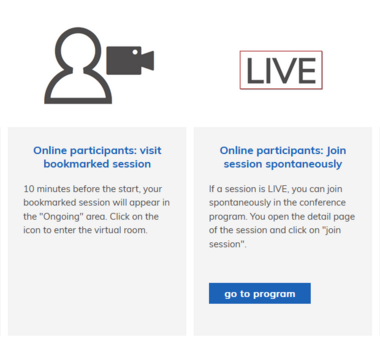
Log in to ‘my conference tool’ and go to the presentations you have bookmarked. Approximately 10 minutes before the event, you will see a figure with a camera. Click on the symbol and you will be redirected to the webinar.
The Zoom room is displayed in a browser tab. Close the tab with the "X".
- Test the access using the workstation and PC that you also use for the meeting.
- Note the system requirements for participation.
- Update the browser you want to use.
- Allow cookies from third-party providers.
- As a speaker a LAN connection to your router is recommended.
- If you have a poor Internet connection, it is best to use a LAN connection to your router.
- Check if your PC meets the system requirements.
During a Zoom session:
- Click the video icon in the menu bar at the bottom of the Zoom window.
- Select "Choose Video Source" (or a similar option, depending on your Zoom version).
- From the list, select the webcam you prefer to use.
Shortcut: - Press Alt + N (Windows) or Option + N (Mac) to switch cameras quickly.
Important Notes:
- As a participant, you will not need to enable your webcam unless the host allows it.
- In Meet & Exchange Breakout Rooms, you can turn on your webcam if needed.
Supported Browsers
For the best experience during the virtual conference, we recommend using the latest version of Google Chrome or Microsoft Edge. These browsers offer full compatibility with Zoom’s web interface, including chat, Q&A, and screen sharing.
Important:
Safari on macOS may not support all Zoom features, such as microphone/camera access, gallery view, or screen sharing. If you are using a Mac:
- Switch to Chrome or Edge for full functionality.
- Or install the Zoom desktop client for macOS: https://zoom.us/download
Additionally, make sure your browser allows cookies and pop-ups, which are required for Zoom to work correctly.
System Permissions (macOS):
Go to System Settings → Privacy & Security → Privacy, and ensure Zoom has permission to access your microphone and camera.
Time Zone Information
All sessions on the conference agenda are scheduled in Central European Time (CET / UTC+1). Please make sure to convert the session times to your local time zone to avoid missing any events.
Here’s how you can easily do this:
Use a time zone converter like timeanddate.com
If you live in a country that recently shifted to Daylight Saving Time, double-check the conversion CET may differ from your local time by more or less than expected.
As a participant, you cannot enable your microphone unless the host grants you permission.